Computer basics
Inside your computer.
Get to know the parts behind the panel. Explore the diagram for a simple explanation of what each one does.
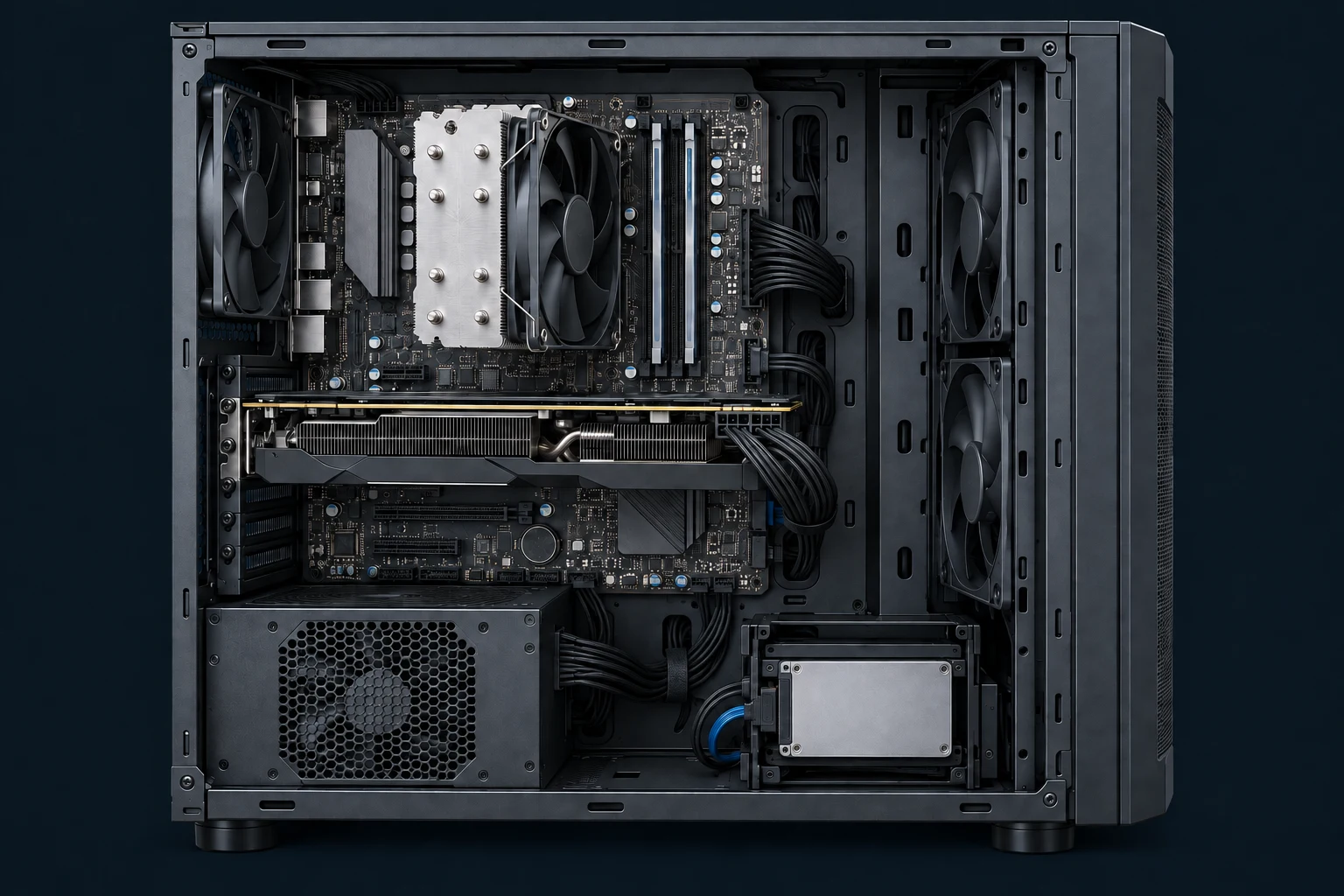
Select a numbered part to see what it does.
Processor & cooling
The processor does the computing. The fan and metal heatsink above it carry heat away.
Memory (RAM)
Short-term working space for the apps and files you have open right now.
Graphics card (GPU)
Creates the picture on your screen and helps with demanding graphics work.
Solid-state drive (SSD)
Keeps your operating system, programs, photos and documents when the power is off.
Power supply (PSU)
Turns mains electricity into the lower voltages the computer’s components need.
Motherboard
The main circuit board connects the processor, memory, storage and other hardware.
The useful landmarks
What these parts do.
These are clues to how a computer works. Similar symptoms can have different causes, so a description alone cannot identify a fault.
Processor & cooling
The processor (CPU) runs your programs and sits underneath the large cooler shown here. Case fans also move warm air out. Dust or a failing fan can lead to extra noise, slowdowns or unexpected shutdowns.
Memory (RAM)
RAM holds information while your computer is working; it does not keep your files when the power is off. Too little memory can make switching between apps or using lots of browser tabs feel sluggish.
Graphics card (GPU)
This separate graphics card is useful for games, video editing and other visual work. Many everyday computers use graphics built into the processor instead. A blank screen can also be caused by the monitor, cable or software.
Solid-state drive (SSD)
The silver rectangle here is a 2.5-inch SSD. Other computers use a small M.2 drive fitted directly to the motherboard, or an older mechanical hard drive. An SSD can make an older computer much more responsive, but every type of drive still needs a backup.
Power supply (PSU)
Cables from this enclosed box power the motherboard, drives and other parts. A fault may stop the computer starting or make it cut out. Never open the power-supply unit itself: it can retain dangerous charge after being unplugged.
Motherboard
Most components plug into this board or connect to it by cable. Its sockets and ports let parts communicate. A loose connection can resemble a failed component, so finding the cause matters before replacing hardware.
Before opening the case
Look here first. Ask if you’re unsure.
Switch off and unplug the computer before opening its case. Never open the power-supply unit itself, even after unplugging it. If your files may be at risk, get advice before trying repairs.